
Custom modules are company-aware
Core built-in modules can be managed without selecting a company in User Role Management. Custom modules are different: select the relevant company before managing user permissions for its custom modules.
Modules can be created and modified using the Module Builder tool. Please see the Module Builder documentation for details.
After a custom module is added, review both company assignment and the user’s module permissions. Users should receive only the access their role requires.
View and search modules
After a custom module is created, it appears in the Modules list together with the other modules available to the tenant. Use the filters to find a module by its ID, name or type.
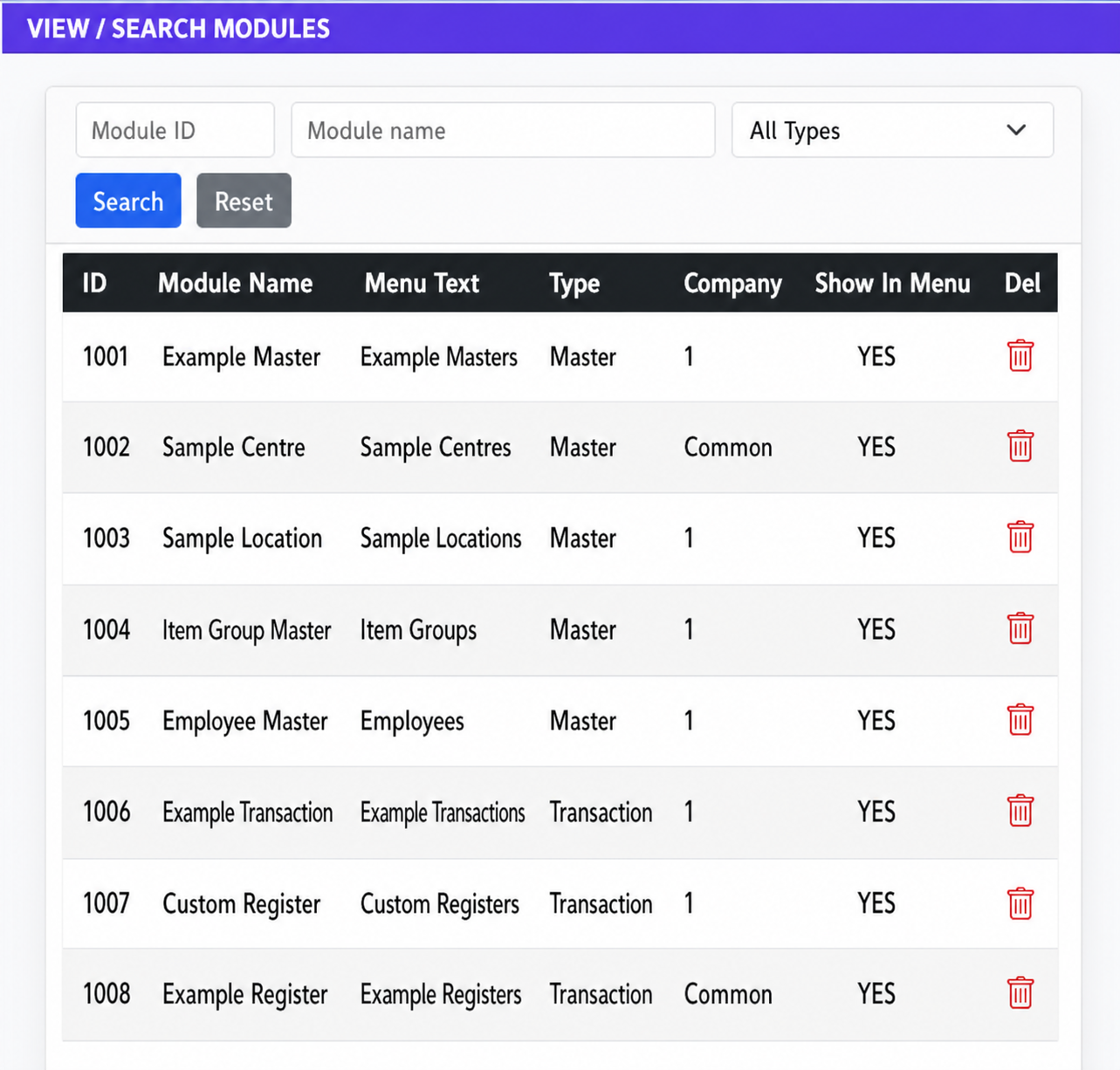
- Module Type: identifies whether the module is a Master or Transaction module.
- Company: shows the company context for the module.
- Show In Menu: indicates whether the module is visible in the ERP menu.
Extend Item and Account masters
Master Extensions lets an administrator add tenant-level custom fields to the built-in Item and Account masters. The configured fields are available across the tenant’s companies.
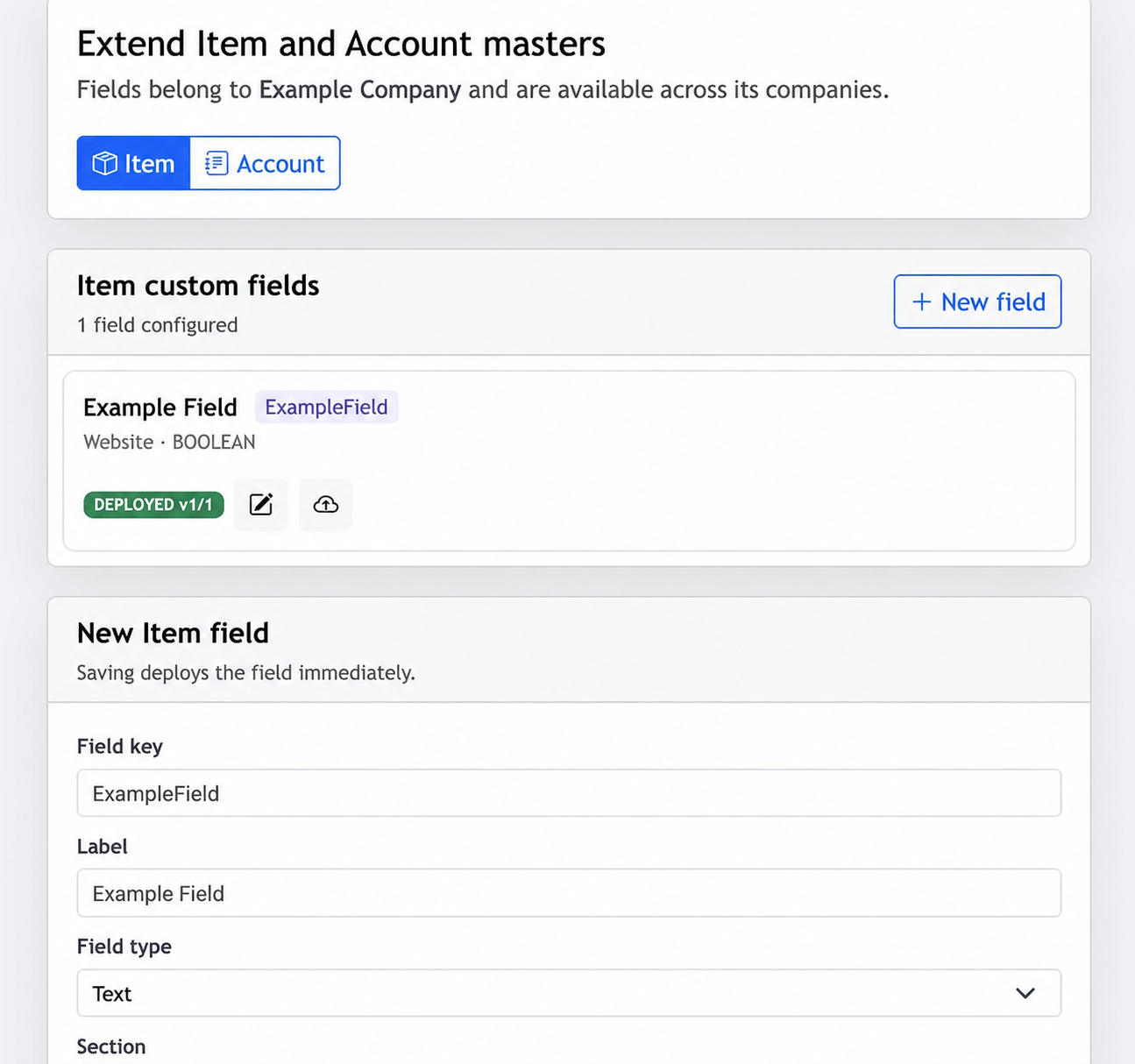
- Item and Account: switch between the two built-in master types to manage their extension fields.
- New field: define the field key, label, field type and section for a new custom field.
- Deployment: saving deploys the field immediately, making it ready for use in the selected master.
Build and publish carefully
- 01Define the requirement
Decide what business information the module should capture and which company needs it.
- 02Build the module
Use Module Builder to design the data, form and print requirements.
- 03Review user access
Select the company in User Role Management, then grant only the required permissions.
- 04Test with the intended role
Verify the module behaves correctly for a user who has the intended level of access.
Continue with Module Builder
The dedicated Module Builder guide explains the design and generation workflow in more detail.
Open Module Builder guide →