
Before using the AI Module Assistant
Select the Tenant, Module Type and Company first. The assistant needs this context before it can prepare a useful definition proposal.
The assistant fills a draft form. It does not save the definition, allocate a Module ID, change a tenant database or generate source files by itself.
Recommended creation flow
- 1Describe the module
State the business purpose, header fields, line items, calculations, reports and expected posting behaviour.
- 2Review every section
Check columns, lookups, child modules, validations, form layout, voucher rules, stock rules and reports.
- 3Save a draft
Save work safely while the definition is still changing.
- 4Generate from a version
Generation uses an immutable definition version and records the resulting job and installed files.
- 5Test in the tenant ERP
Verify create, edit, delete, calculations, reports and posting before giving users access.
Important design rules
- Keep menu text concise—20 characters or fewer.
- Place entire child sections deliberately in the parent form layout.
- Use structured lookup filters; never enter arbitrary SQL or executable code.
- Ensure debit and credit posting balances before generation.
- Use stable source identifiers so updates and deletes can reverse old posting safely.
Learn the builder one tab at a time
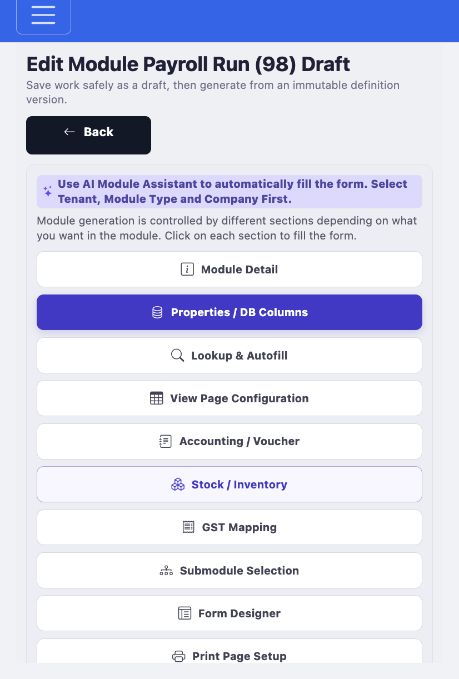
The available tabs change with the selected module type and enabled capabilities. Use these guides while reviewing an AI-filled proposal or configuring a module manually.
Choose the tenant, company, module type and major capabilities.
Open guide →02Properties / DB ColumnsDefine stored fields, inputs, validation, calculations and Basic Update.
Open guide →03Lookup & AutofillLoad related data and dependent choices without custom code.
Open guide →04View Page ConfigurationControl list columns, search, sorting and record actions.
Open guide →05Accounting / VoucherCreate balanced debit and credit posting groups.
Open guide →06Stock / InventoryMap generated documents to stock movement and valuation.
Open guide →07GST MappingMap statutory header and line values for GST reports.
Open guide →08Submodule SelectionAttach reusable child or line-item modules.
Open guide →09Form DesignerArrange fields and child tables into a practical form.
Open guide →10Print StudioCreate safe print layouts from HTML, CSS and placeholders.
Open guide →11Preview & GenerationReview the result, generate it and complete runtime testing.
Open guide →REPORTReport ConfigurationConfigure a Report module with filters, datasets and sections.
Open guide →